# What is nodecast-tv?
nodecast-tv is a modern, web-based IPTV player featuring Live TV, EPG, Movies (VOD), and Series support. Built with performance and user experience in mind.
## Features
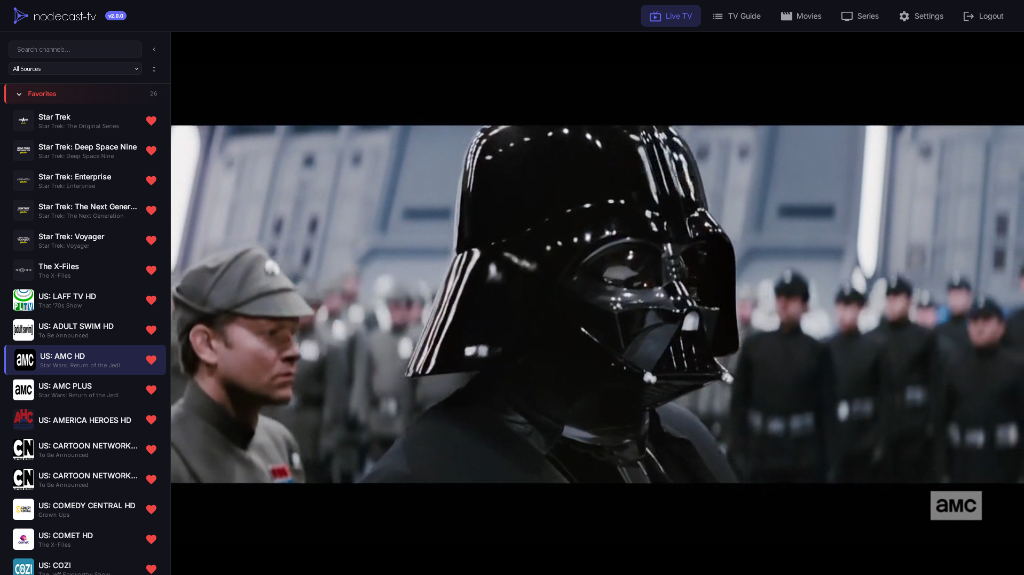
- **📺 Live TV**: Fast channel zapping, category grouping, and search.
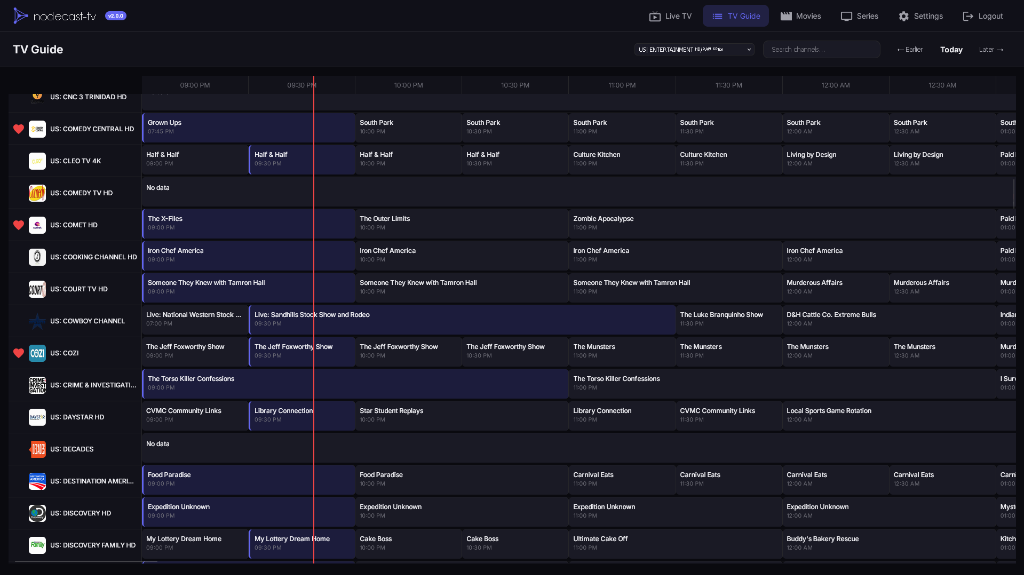
- **📅 TV Guide (EPG)**: Interactive grid guide with 24h timeline, search, and dynamic resizing.
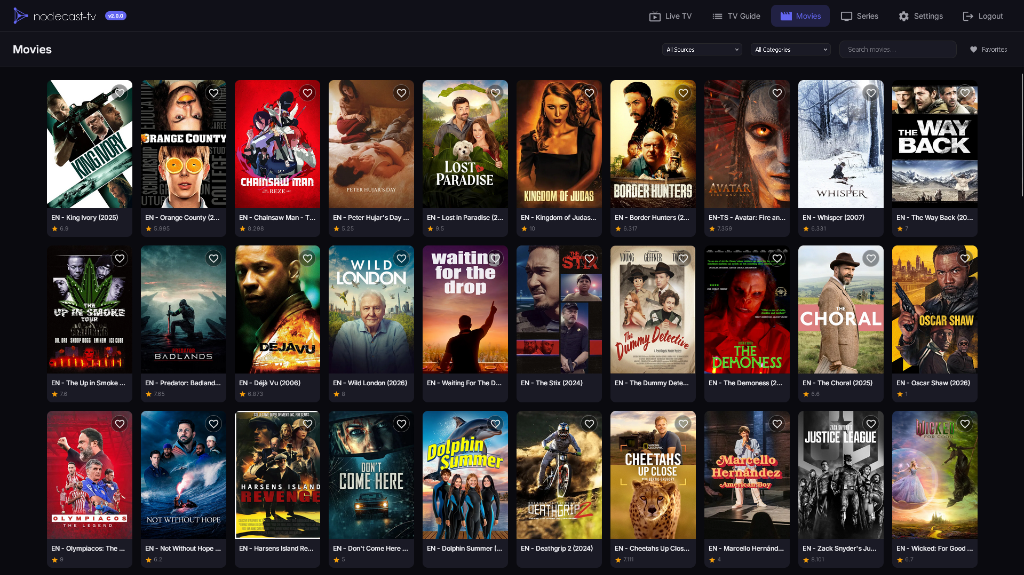
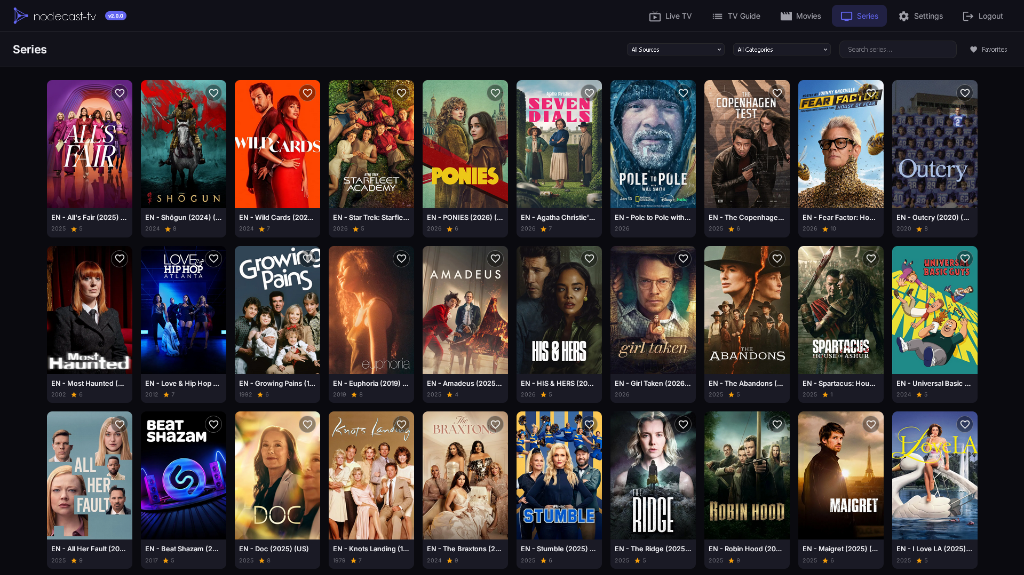
- **🎬 VOD Support**: Dedicated sections for Movies and TV Series with rich metadata, posters, and seasonal episode lists.
- **❤️ Favorites System**: Unified favorites for channels, movies, and series with instant synchronization.
- **🔐 Authentication**: User login system with admin and viewer roles ([details](https://github.com/technomancer702/nodecast-tv/pull/23)).
- **⚡ High Performance**: Optimized for large playlists (7000+ channels) using virtual scrolling and batch rendering.
- **⚙️ Management**:
- Support for Xtream Codes and M3U playlists.
- Manage hidden content categories.
- Playback preferences (volume memory, auto-play).
- **🎛️ Hardware Transcoding**: GPU-accelerated transcoding with NVIDIA NVENC, AMD AMF, Intel QuickSync, and VAAPI support.
- **🔊 Smart Audio**: Configurable 5.1→Stereo downmix presets (ITU, Night Mode, Cinematic) with automatic passthrough for compatible sources.
- **📦 Stream Processing**: Auto-detection of stream codecs with smart remux/transcode decisions.
- **🐳 Docker Ready**: Easy deployment containerization.
## Screenshots
## Getting Started
### Prerequisites
- Node.js (v14 or higher)
- npm
### Installation
1. Clone the repository:
```bash
git clone https://github.com/yourusername/nodecast-tv.git
cd nodecast-tv
```
2. Install dependencies:
```bash
npm install
```
3. Start the development server:
```bash
npm run dev
```
4. Open your browser at `http://localhost:3000`.
### Docker Deployment
You can run nodecast-tv easily using Docker.
1. Create a `docker-compose.yml` file (or copy the one from this repo):
```yaml
services:
nodecast-tv:
build: https://github.com/technomancer702/nodecast-tv.git#main
container_name: nodecast-tv
ports:
- "3000:3000" # Host:Container
volumes:
- ./data:/app/data
restart: unless-stopped
environment:
- NODE_ENV=production
- PORT=3000 # Optional: Internal container port
```
2. Run the container:
```bash
docker-compose up -d
```
The application will be available at `http://localhost:3000`.
### Hardware Acceleration Setup
To enable hardware transcoding (NVENC, QSV, VAAPI), you must expose your host's GPU to the container.
**1. Intel (QSV) & AMD (VAAPI)**
Update your `docker-compose.yml` to map the DRI devices and add necessary groups (often required for permission):
```yaml
devices:
- /dev/dri:/dev/dri # Required for VAAPI/QuickSync/AMF (Linux)
# group_add: # Optional: Needed mainly if you run as non-root
# - "video" # Run on host: getent group video
# - "render" # Run on host: getent group render
```
**2. NVIDIA (NVENC)**
Ensure you have the [NVIDIA Container Toolkit](https://docs.nvidia.com/datacenter/cloud-native/container-toolkit/install-guide.html) installed on your host, then update your `docker-compose.yml`:
```yaml
deploy:
resources:
reservations:
devices:
- driver: nvidia
count: 1
capabilities: [gpu]
```
**Verify:**
After restarting the container, go to **Settings -> Transcoding**. The **Hardware Detection** status should list your GPU (e.g., "NVIDIA GPU Detected" or "VAAPI Available").
### SSO / OIDC Setup
Enable Single Sign-On (SSO) with your preferred OIDC provider (Authentik, Keycloak, etc.) by configuring these variables in your `.env` file or Docker environment:
```env
OIDC_ISSUER_URL=https://your-idp.com/application/o/nodecast/
OIDC_CLIENT_ID=your_client_id
OIDC_CLIENT_SECRET=your_client_secret
OIDC_CALLBACK_URL=http://localhost:3000/api/auth/oidc/callback # Adjust for your domain
```
**Note:** New users signing in via SSO are automatically assigned the **Viewer** role. You must manually promote them to Admin if desired.
### Usage
1. Go to **Settings** -> **Content Sources**.
2. Add your IPTV provider details (Xtream Codes or M3U URL).
3. Click "Refresh Sources".
4. Navigate to **Live TV**, **Movies**, or **Series** to browse your content.
## Browser Codec Support & Transcoding
nodecast-tv is a web-based application. By default, **video decoding is handled by your browser**. However, the built-in **smart transcoding system** automatically converts incompatible media (e.g., HEVC video, Dolby audio) into browser-friendly formats using FFmpeg.
**Codec Compatibility Table:**
| Codec | Chrome | Firefox | Safari | Edge |
|-------|--------|---------|--------|------|
| **H.264 (AVC)** | ✅ | ✅ | ✅ | ✅ |
| **H.265 (HEVC)** | Auto-Transcode | Auto-Transcode | ✅ | ⚠️ |
| **AV1** | ✅ | ✅ | Auto-Transcode | ✅ |
| **AAC Audio** | ✅ | ✅ | ✅ | ✅ |
| **AC3/EAC3 (Dolby)** | Auto-Transcode | Auto-Transcode | ✅ | Auto-Transcode |
> **⚠️ Note:** Edge requires the [HEVC Video Extensions](https://apps.microsoft.com/store/detail/hevc-video-extensions/9NMZLZ57R3T7) from the Microsoft Store to play H.265 (HEVC) natively.
> **ℹ️ Note:** Safari plays AV1 natively on supported hardware (iPhone 15 Pro, M3 Macs). On older devices, Auto-Transcode handles it.
## Supported Stream Types
nodecast-tv is optimized for **HLS (HTTP Live Streaming)**.
- **✅ HLS (`.m3u8`)**: Fully supported and recommended. Best for adaptive bitrate and network resilience.
- **✅ MPEG-TS (`.ts`)**: Supported via Force Remux in settings.
- **⚠️ High Latency/P2P**: For sources like Acestream, prefer HLS output (`.m3u8`) over raw TS streams to avoid timeouts during buffering.
- **❌ RTMP/RTSP**: Not supported natively by browsers.
## Transcoding Settings
All transcoding and stream processing settings are found in **Settings → Transcoding**.
### Hardware Encoder
| Setting | Options | Description |
|---------|---------|-------------|
| **Hardware Encoder** | Auto, NVENC, AMF, QSV, VAAPI, Software | GPU-accelerated encoding. Auto detects best available. |
| **Max Resolution** | 4K, 1080p, 720p, 480p | Limit output resolution (lower = faster). |
| **Quality Preset** | High, Medium, Low | Encoding quality/speed tradeoff. |
| **Audio Mix Preset** | Auto, ITU, Night Mode, Cinematic, Passthrough | 5.1→Stereo downmix mode (see below). |
### Audio Mix Presets
| Preset | Description |
|--------|-------------|
| **Auto (Smart)** | Copies stereo AAC as-is, uses ITU downmix for 5.1+ |
| **ITU-R BS.775** | Industry-standard balanced downmix |
| **Night Mode** | Boosted dialogue, reduced bass for quiet viewing |
| **Cinematic** | Wide soundstage, immersive surround feel |
| **Passthrough** | No processing (may cause errors on 5.1/Dolby sources) |
### Stream Processing
| Setting | What It Does | When to Enable |
|---------|--------------|----------------|
| **Auto Transcode (Smart)** | Probes streams and only transcodes/remuxes when needed | Recommended for most users (default ON) |
| **Force Audio Transcode** | Transcodes audio to AAC (video passes through) | When you have video but no audio (Dolby/AC3/EAC3) |
| **Force Video Transcode** | Full transcode of both audio and video | For HEVC/VP9 sources on unsupported browsers |
| **Force Remux** | Remuxes MPEG-TS to MP4 (no re-encoding) | For raw `.ts` streams from middleware |
| **Stream Output Format** | HLS or TS for Xtream API requests | Try TS if HLS causes buffering |
### Network
| Setting | What It Does | When to Enable |
|---------|--------------|----------------|
| **Force Backend Proxy** | Routes streams through the server for CORS headers | When streams fail with CORS errors, or using middleware |
## Troubleshooting
### Video Won't Play (Black Screen or Loading Forever)
| Symptom | Likely Cause | Solution |
|---------|--------------|----------|
| Black screen, `Access-Control-Allow-Origin` error | CORS blocked | Enable **"Force Backend Proxy"** in Settings → Transcoding |
| Black screen with `MEDIA_ERR_DECODE` | Unsupported codec (HEVC/VP9) | Ensure **"Auto Transcode"** is enabled |
| Loading forever (no error) | Browser decoder stuck | Enable **"Force Video Transcode"** (overrides Auto detection) |
### No Audio (Video Plays Fine)
| Symptom | Likely Cause | Solution |
|---------|--------------|----------|
| No audio at all | Dolby/AC3/EAC3 audio | Enable **"Force Audio Transcode"** (overrides Auto detection) |
| Audio out of sync | Stream encoding issue | Try changing stream format to TS in Settings |
### Buffering Issues
| Symptom | Likely Cause | Solution |
|---------|--------------|----------|
| Constant buffering | Slow network or weak GPU | 1. Lower **Max Resolution** (e.g. to 720p)
2. Try **TS** format instead of HLS |
### HTTPS / Reverse Proxy Issues
If you're running nodecast-tv behind a reverse proxy (Nginx, Caddy, Traefik) with HTTPS:
| Symptom | Likely Cause | Solution |
|---------|--------------|----------|
| Streams fail with `fragLoadError` | Mixed content (HTTPS page loading HTTP streams) | Enable **"Force Backend Proxy"** in Settings → Transcoding |
| Streams work on HTTP but not HTTPS | Reverse proxy not passing headers correctly | Ensure `X-Forwarded-Proto` header is set (see examples below) |
**Caddy example:**
```
tv.domain.com {
reverse_proxy nodecast:3000 {
flush_interval -1
header_up X-Forwarded-Proto {scheme}
}
}
```
**Nginx example:**
```nginx
location / {
proxy_pass http://nodecast:3000;
proxy_http_version 1.1; # Required for chunked transfers and keep-alive
proxy_buffering off; # Don't buffer responses (required for streaming)
proxy_request_buffering off; # Don't buffer requests
proxy_read_timeout 300s; # VOD: 5 min timeout for large files
proxy_connect_timeout 60s; # VOD: Connection timeout
client_max_body_size 0; # No upload size limit
proxy_set_header Host $host;
proxy_set_header X-Real-IP $remote_addr;
proxy_set_header X-Forwarded-For $proxy_add_x_forwarded_for;
proxy_set_header X-Forwarded-Proto $scheme; # Required for HTTPS detection
proxy_set_header Connection ""; # VOD: Enable keep-alive for Range requests
}
```
### IPTV Middleware (m3u-editor, dispatcharr, Threadfin, xTeVe)
If you manage your streams with middleware tools, you may encounter CORS issues or raw MPEG-TS streams that browsers can't play directly.
**Recommended Setup:**
1. **Force Backend Proxy:** Enable this in **Settings → Transcoding → Network**. This routes middleware streams through NodeCast TV, bypassing CORS restrictions.
2. **Auto Transcode:** Keep this enabled (default). It will automatically detect if the middleware stream (e.g., MPEG-TS) needs to be remuxed or transcoded for the browser.
There is rarely a need to configure specific "Force Remux" settings manually anymore; the system detects stream types automatically.
### TVHeadend
If you're using TVHeadend as your source, you may need to configure a few settings for streams to play correctly in nodecast-tv:
**Option 1: Enable Force Backend Proxy (Easiest)**
- In nodecast-tv, go to **Settings → Transcoding → Network**
- Enable **"Force Backend Proxy"**
- This routes streams through the server, bypassing browser CORS restrictions
**Option 2: Configure TVHeadend CORS**
- In TVHeadend, go to **Configuration → General → Base → HTTP Server Settings**
- Add your nodecast-tv URL to **"CORS origin"** (e.g., `http://192.168.1.100:3000`)
- **Note:** You must include the protocol (`http://` or `https://`)
**Additional Tips:**
- Enable **"digest+plain"** authentication in TVHeadend if using username/password in the M3U URL
- Try different stream profiles (`?profile=pass` or `?profile=matroska`) if playback issues persist
### Acestream / P2P Streaming
If you are using `acestream-docker-home` or similar tools, it is **recommended** to use the HLS output format to reduce server load, though NodeCast TV can remux raw streams if needed.
- **Recommended:** `http://proxy:6878/ace/manifest.m3u8?id=...` (HLS Playlist - Direct Play)
- **Supported:** `http://proxy:6878/ace/getstream?id=...` (MPEG-TS - Requires Server Remuxing)
## Technology Stack
- **Backend**: Node.js, Express
- **Frontend**: Vanilla JavaScript (ES6+), CSS3
- **Database**: SQLite (via better-sqlite3) for high-performance data storage
- **Streaming**: HLS.js for stream playback
- **Transcoding**: FFmpeg (integrated for hardware/software transcoding)
## Project Structure
```
nodecast-tv/
├── public/ # Frontend assets
│ ├── css/ # Stylesheets
│ ├── js/ # Client-side logic
│ │ ├── components/ # UI Components (ChannelList, EpgGuide, etc.)
│ │ ├── pages/ # Page Controllers (Movies, Series, etc.)
│ │ └── api.js # API Client
│ └── index.html # Main entry point
├── server/ # Backend server
│ ├── routes/ # API Endpoints (proxy, transcode)
│ ├── services/ # Playlist parsers, SyncService, etc.
│ ├── db/ # Database Logic
│ │ ├── index.js # Legacy DB Wrapper
│ │ └── sqlite.js # SQLite Connection & Schema
│ └── index.js # Server Entry Point
└── data/ # Persistent storage (content.db, playlists)
```
## License
This project is licensed under the **GNU General Public License v3.0 (GPL-3.0)**.
You are free to:
- **Run** the program for any purpose
- **Study** how the program works and change it
- **Redistribute** copies
- **Distribute** copies of your modified versions
Under the condition that:
- You typically must distinguish your modifications from the original work
- You provide the source code to recipients
- You license any derivative works under the same GPL-3.0 license
See the [LICENSE](LICENSE) file for details.